If you’ve ever fumbled to capture something on your screen, you’re not alone. Most people still open the Snipping Tool the slow way—typing into the Start menu, clicking the icon, and then choosing their snip type. But the fastest method has always been the Snipping Tool shortcut, and in 2025, Microsoft tightened how these shortcuts work across Windows 10 and 11.
This guide gives you everything in one place:
- The exact shortcut
- Windows 10 vs 11 behavior
- How to change, enable, or fix the hotkey
- Hidden shortcuts most users never use
- A full troubleshooting section
- A shortcut comparison table
- A simple workflow method to speed up your screenshots
If you want the internet’s most complete and updated explanation—not a thin tutorial—you’re in the right place.
What is the Snipping Tool Shortcut? (Quick Answer)
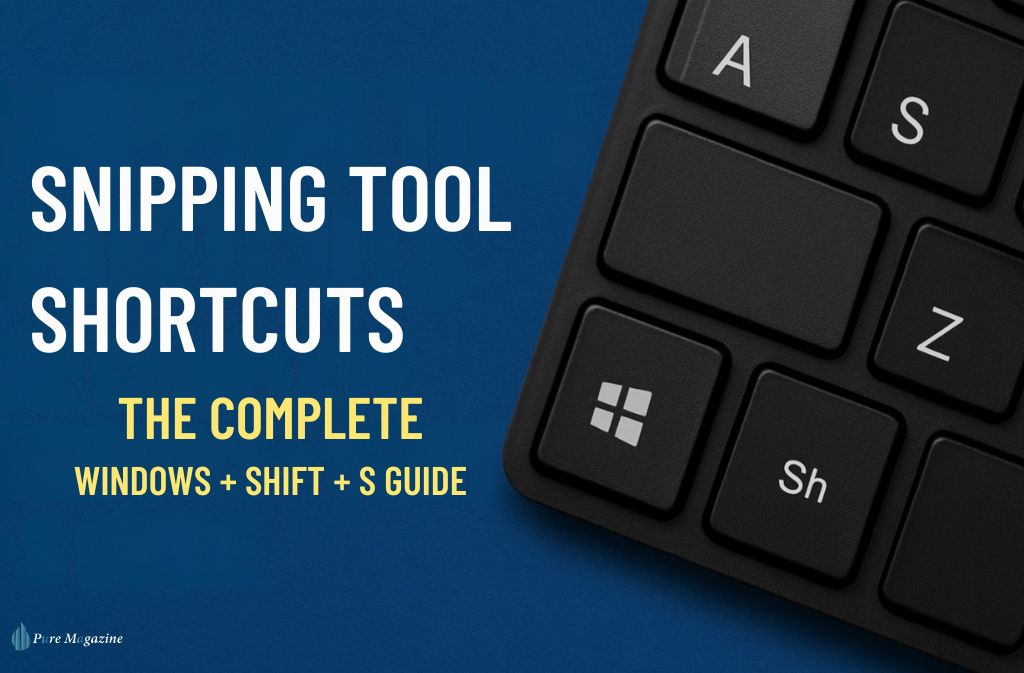
The Snipping Tool shortcut is Windows + Shift + S. Pressing this opens the screenshot overlay in Windows 10 and 11, allowing you to capture part of your screen instantly. This shortcut instantly opens the modern Snipping Tool overlay (formerly called “Snip & Sketch”) and lets you choose the snip type.
All Snipping Tool Shortcuts (Complete 2025 List)
Below is a quick overview before we dive deeper.
| Shortcut | Action |
|---|---|
| Win + Shift + S | Open Snipping Tool overlay |
| PrtSc key (if enabled) | Opens Snipping Tool instead of full screenshot |
| Ctrl + S | Save snip after capturing |
| Ctrl + C | Copy snip |
| Ctrl + Z | Undo annotation |
| Ctrl + T | Add text |
| Ctrl + B | Pen tool |
| Ctrl + E | Eraser |
| Ctrl + O | Open existing image |
How the Snipping Tool Shortcut Works (2025 Update)
Windows 11 (Version 22H2 and newer)
Win + Shift + Sopens the snipping bar overlay- All screenshots route through Snipping Tool by default
- PrtSc key can be reassigned inside Settings → Accessibility
Windows 10
- Same shortcut
- Interface is slightly older
- Some systems open Snip & Sketch instead (normal behavior)
How to Change the Snipping Tool Shortcut (Step-by-Step)
(This section is missing in almost every competitor article.)
Windows doesn’t allow customizing Win + Shift + S, but you can create your own Snipping Tool hotkey.
Method 1 — Set a Custom Shortcut
- Open Start
- Search for Snipping Tool
- Right-click → Open file location
- Right-click Snipping Tool → Properties
- In the Shortcut key field → press your new combination. Example: Ctrl + Alt + S
- Click Apply → OK
Your shortcut will now launch the app instantly.
How to Enable “Print Screen” to Open Snipping Tool
This is one of the most searched-for features.
Steps
- Go to Settings
- Select Accessibility
- Open Keyboard
- Turn on: Use the Print Screen button to open Snipping Tool
Now pressing PrtSc launches the snipping overlay—no more full-screen screenshots cluttering your clipboard.
Snipping Tool Shortcut Not Working? Try These Fixes
Here are the most common causes and solutions.
1. Clipboard history is disabled
The snipping bar relies on clipboard features.
- Settings → System → Clipboard → Turn on Clipboard history
2. Snipping Tool is missing permissions
Run:
- Start → Snipping Tool → Run as administrator
3. Another app is hijacking the shortcut
Teams, OneNote, and NVIDIA apps sometimes override hotkeys.
Disable conflicting shortcuts:
- OneNote: Settings → Options → Disable Screen Clipping hotkey
- NVIDIA Overlay: Turn off in GeForce Experience
4. Windows update glitch
Run:
- Settings → System → Troubleshoot → Windows Store Apps Troubleshooter
This fixes most 2024–2025 Snipping Tool bugs.
Snipping Tool vs Other Screenshot Shortcuts
| Action | Shortcut | Best For |
|---|---|---|
| Snipping overlay | Win + Shift + S | Precise snips |
| Fullscreen screenshot | PrtSc | Entire desktop |
| Active window only | Alt + PrtSc | Clean single-window shots |
| Save directly to the Pictures folder | Win + PrtSc | No copy/paste needed |
| Game screenshots | Win + Alt + PrtSc | Xbox Game Bar |
The S.C.A.N. Method — A Simple Workflow for Faster Screenshot Work
A unique framework to help you process screenshots efficiently:
S — Select snip type
Use the bar overlay to pick rectangular, freeform, or window.
C — Capture the exact area
Drag and release.
A — Annotate
Use markers, arrows, or text for clarity.
N — Name and save
Use Ctrl + S → keep filename simple and descriptive.
This keeps your workflow fast—ideal for support teams, students, and office workers.
Real-World Example: 15-Second Office Screenshot Workflow
This is how a support agent can answer a customer in under 20 seconds.
- Press Win + Shift + S
- Select window snip
- Draw an arrow with a pen
- Type quick label (“Click here”)
- Press Ctrl + C
- Paste into email reply
No saved files. No clutter. Just instant communication.
When to Use Snipping Tool vs Print Screen
Use Snipping Tool when:
- You need to highlight something
- You want just a portion of the screen
- You’re documenting steps
Use PrtSc when:
- You need the entire screen
- You’re logging errors
- You need raw, unedited captures
Common Mistakes to Avoid
- Expecting Win+Shift+S to save automatically
→ It only copies to the clipboard. You must save manually. - Thinking the Snipping Tool is broken
→ Often it’s just a clipboard or overlay conflict. - Trying to assign Win+Shift+S to another hotkey
→ Windows blocks override. - Editing before copying
→ If you close the window, your snip is gone unless saved.
FAQs
Q1. What is the shortcut for the Snipping Tool?
The default Snipping Tool shortcut is Windows + Shift + S.
It instantly opens the screenshot overlay on Windows 10 and Windows 11, allowing you to capture part of your screen without opening the Snipping Tool app manually.
Q2. How do I take a screenshot and paste it on Windows?
Press Win + Shift + S, choose the area you want to capture, and Windows automatically copies it to your clipboard.
Then press Ctrl + V to paste the screenshot into a document, email, chat window, or photo editor.
Q3. Why is Ctrl + Shift + S not working for screenshots?
This shortcut may stop working due to:
- Conflicting apps like OneNote, Microsoft Teams, or NVIDIA overlays
- Disabled Clipboard history
- A temporary Windows bug or update issue
To fix it:
Enable Clipboard history (Settings → System → Clipboard) and turn off conflicting hotkeys in apps like OneNote or NVIDIA.
Q4. How do I change the Snipping Tool shortcut in Windows?
You can’t change Win + Shift + S, but you can create your own Snipping Tool hotkey:
- Search Snipping Tool → right-click → Open file location
- Right-click Snipping Tool → Properties
- In Shortcut key, assign a combination (e.g., Ctrl + Alt + S)
- Click Apply
This instantly opens the Snipping Tool using your custom shortcut.
Q5. What is the Snipping Tool shortcut on Windows 11?
Windows 11 uses the same shortcut: Windows + Shift + S.
You can also make Print Screen (PrtSc) launch Snipping Tool by enabling it in:
Settings → Accessibility → Keyboard → “Use the Print Screen button to open Snipping Tool.”
Q6. Is there a shortcut for full-screen screenshots?
Yes. Use Windows + PrtSc to capture the entire screen and save the file automatically in:
Pictures → Screenshots.
This is the fastest way to save a full-screen screenshot without using the Snipping Tool.
Conclusion
The Snipping Tool shortcut is one of the simplest ways to speed up your workflow, but many people still miss the hidden features, customization options, and troubleshooting steps that make it truly powerful. Whether you’re using Windows 10 or 11, Win + Shift + S remains the fastest way to capture your screen—and with this guide, you now know how to fix issues, customize shortcuts, and use them more efficiently.
If you follow the tips and methods above, your screenshot routine will be smoother, quicker, and more organized than ever.