Quick Fix Checklist (Read This First) If you just want copy-paste working again, check these in order:
Most people miss one step and wonder why the error comes back. |
You copied something important.
An email. A paragraph. A code snippet.
Then—out of nowhere—you see:
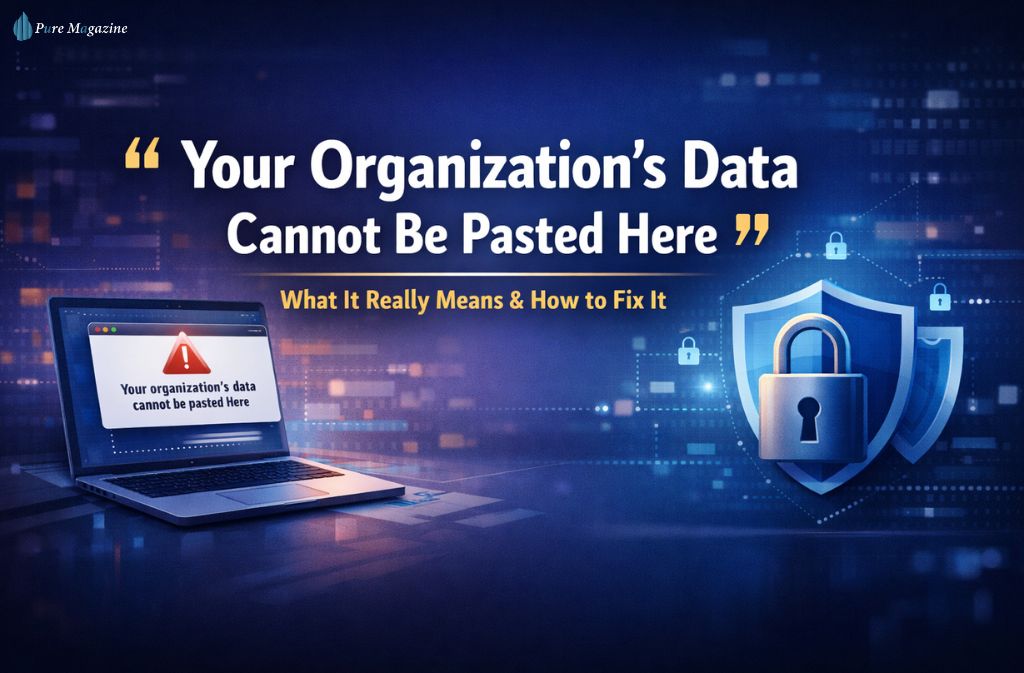
“Your organization’s data cannot be pasted here.”
No explanation. No fix button. Just a hard stop.
What makes this error especially frustrating is that it often appears on personal devices—home laptops, privately owned phones, and unmanaged PCs. You’re not on a company network. You’re not breaking a rule (that you know of). Yet copy-paste is blocked.
Here’s the reality: this message isn’t a bug, and it isn’t random. It’s a deliberate data-loss prevention (DLP) control enforced at the app level, usually by Microsoft Intune or similar enterprise protection policies.
This guide explains:
- What the error actually means (in plain English)
- Why does it follow people onto personal devices
- How to fix it safely on Windows 11, Windows 10, iPhone, and Android
- The one fix most competitors completely miss
- Why this error is becoming more common in 2026—especially with AI tools
If you’ve already wasted time on Reddit threads and half-answers, this will finally make it click.
What “Your Organization’s Data Cannot Be Pasted Here” Really Means
At its core, this error means:
An app on your device is managed, and its data is restricted from being pasted into an unapproved app.
This restriction is enforced by:
- Microsoft Intune
- Microsoft 365 App Protection Policies
- Google Workspace app protection
- Apple MDM / app management profiles
The key point:
👉 The control lives inside the app, not the device.
That’s why:
- Your phone isn’t “managed.”
- You can install apps freely
- But clipboard actions are still blocked
Why This Happens on Personal Devices (The Real Reason)
This is where most guides fail.
You don’t need a company laptop for this error to appear. You only need one managed app.
Common real-world triggers
- You signed into Outlook with a work email once
- You installed Teams for a previous job
- You used Word or Excel with a corporate account
- You briefly enrolled a device during email setup
- You removed the account—but not the protection policy
I’ve seen users factory-reset their entire phones for this.
It worked—until they signed back into Outlook.
The error returned in under a minute.
Don’t be that person.
MAM vs MDM: The One Detail Most People Get Wrong
Understanding this difference instantly clears up the confusion.
MDM (Mobile Device Management)
- Controls the entire device
- Common on company-issued hardware
- Full enrollment
- Admin controls settings, apps, and restrictions
MAM (Mobile Application Management)
- Controls specific apps only
- Works on personal devices
- No full device enrollment required
- The most common cause of this error
👉 This error is usually MAM, not MDM.
That’s why removing a device from management often doesn’t help—the app itself is still enforcing rules.
Why the “Only 25 / 250 Characters Are Allowed” Version Appears
This version isn’t random or buggy.
Organizations can configure:
- Maximum paste length
- Paste is allowed only within approved apps
- Partial clipboard access
So when you can paste short text but not full paragraphs, that’s policy behavior, not a glitch.
Where This Error Commonly Appears
Windows 11 & Windows 10
- Microsoft Word / Excel
- Outlook desktop
- Edge with work profile
- Remote Desktop or VDI sessions
iPhone (iOS)
- Outlook
- Teams
- OneDrive
- Managed Safari sessions
Android
- Work profile overlap
- App-level protection rules
- Clipboard restrictions between profiles
Step-by-Step: How to Fix It Safely
Step 1: Identify the Managed App
Ask yourself:
- What app am I copying from?
- What app am I pasting into?
If either app is managed, the restriction applies.
Step 2: Fully Remove Old Work Accounts
On Windows:
- Settings → Accounts → Access work or school
- Disconnect any unused accounts
- Restart
On mobile:
- Remove work email from device settings
- Remove any device management profile
- Restart
Partial sign-outs don’t work. The restart matters.
Step 3: Clear the Office App Cache (Most Missed Fix)
Even after removing accounts, Office apps can retain cached identity tokens.
This is why uninstalling Office often doesn’t fix the issue.
Windows
- Close all Office apps
- Open Credential Manager
- Remove credentials related to: MicrosoftOffice, ADAL, or Work email addresses
- Restart
- Open Word or Excel and sign in cleanly
iOS / Android
- Settings → Apps → Outlook / Word
- Clear app data (not uninstall)
- Reopen and sign in again
This step alone resolves a huge percentage of stubborn cases.
Step 4: Use Approved Transfer Methods
If policy is required (for work devices), use:
- OneDrive (same account)
- Email to yourself
- Secure notes app
- Built-in export features
These are explicitly allowed by most organizations.
What Not to Do (Common Mistakes)
❌ Registry hacks copied from forums
❌ Clipboard bypass tools
❌ Browser extensions claiming to “unlock paste.”
❌ Disabling security services
❌ Random PowerShell scripts
These can:
- Break Office apps
- Trigger security alerts
- Violate company policy
- Lock your account
Also Read: Image Search Techniques (2026): Find Any Image Fast
What Works vs What Doesn’t
| Method | Works | Risk |
|---|---|---|
| Remove the work account properly | ✅ | None |
| Clear Office cache | ✅ | None |
| Restart only | ❌ | None |
| Registry hacks | ❌ | High |
| Clipboard tools | ❌ | High |
| Cloud transfer | ✅ | None |
2026 Reality: Why This Error Is Getting More Common
This isn’t just about data leaks anymore.
Organizations now block copy-paste to prevent:
- Pasting internal data into ChatGPT
- Sharing proprietary code with Claude or Gemini
- Feeding confidential content into external AI tools
Modern DLP policies specifically monitor:
- Clipboard → browser
- Clipboard → AI chat
- Clipboard → unmanaged apps
That’s why this error suddenly appears when pasting into ChatGPT or similar tools.
How to Explain This to IT (Without Sounding Suspicious)
If you need copy-paste for your job, say this:
“I’m hitting an app-level MAM clipboard restriction between managed and unmanaged apps.
Is there an approved method you want me to use?”
This shows:
- You understand the policy
- You’re not asking for a bypass
- You want a compliant solution
IT is far more likely to help.
Also Check: How to Copy and Paste on Chromebook (Simple 2026 Guide)
Pro Option: Isolate Work With a VM or Windows Sandbox
If you constantly mix personal and work tasks, stop fighting clipboard rules.
Use:
- Windows Sandbox
- A dedicated virtual machine
- A separate managed browser inside the VM
Result:
- Work apps stay compliant
- Personal apps stay unrestricted
- Clipboard rules stop bleeding across environments
This is how power users avoid this issue entirely.
FAQs
Q. Why does it say “Your organization’s data cannot be pasted here”?
Because an app on your device is protected by enterprise app-management policies that block copying data outside approved apps to prevent data leakage.
Q. Why does this restriction happen on my personal PC?
This usually happens because a managed work or school account is still applying app protection policies on your device. Even if the PC is personal, Microsoft allows organizations to enforce data-loss prevention rules through managed apps, which can limit actions like copying or pasting content.
Q. Is this caused by Microsoft Intune?
In most cases, yes. The restriction is typically enforced through Microsoft Intune or Microsoft 365 App Protection Policies. These policies can apply even if your device is not fully enrolled, as long as a managed account is signed in.
Q. Can I bypass this restriction?
No—at least not safely or legitimately. These limits are designed to prevent data leakage. The correct way to resolve the issue is to remove the managed account, sign out of protected apps, or use organization-approved transfer methods like secure sharing or cloud access.
Q. Why can I paste only 25 or 250 characters?
Q. Does uninstalling Microsoft Office fix the problem?
Often, no. Even after uninstalling Office or Microsoft 365 apps, cached credentials and residual policies can continue enforcing restrictions until the managed account is fully removed from the system.
Q. Can IT see what I copy to my clipboard?
No. These systems block certain actions, but they do not record or monitor clipboard content. The policy prevents copying—it doesn’t spy on what you attempt to copy.
Q. Will resetting my device fix it?
Yes, a full device reset will remove all managed accounts and policies. However, this is a last resort and usually unnecessary if you properly sign out of work accounts and remove them from device settings.
Conclusion
The “your organization’s data cannot be pasted here” error feels unreasonable because it explains nothing.
But once you understand that it’s enforced by app-level protection—not your device, the fixes stop feeling random. Remove the right account. Clear the right cache. Or accept the boundary and use an approved path.
Either way, you’re no longer guessing. And that’s the real fix.