Care staff open the Nourish portal dozens of times a day, but finding the correct login page — and actually signing in without errors — is still surprisingly confusing. Between multiple portals, GP Connect permissions, evolving app versions, and the recent CarePlanner migration, many users get stuck before their shift has even begun.
If you searched “nourish care login”, you likely want one of three things:
- A fast, correct link to the official login page
- Step-by-step instructions to access the portal or app
- Help fixing login issues that interrupt your workflow
This guide does all three — without the jargon, dead links, or outdated instructions found on most competitor pages. You’ll also get updated 2026 information that care homes and managers now rely on, including the new GP Connect login permissions and the CarePlanner → Nourish Empower transition that Google hasn’t caught up with.
Let’s start with the part everyone searches for first.
What Is Nourish Care?
Nourish Care is a digital care management platform used by UK social care providers to record notes, update care plans, and support person-centred care in real time. Carers, team leaders, nurses, and managers use it to:
- Update care records instantly
- Review tasks, observations, and alerts
- Access care plans and assessments
- Communicate with the wider care team
- Sync with GP Connect (for authorised roles)
- Use mobile devices for on-shift documentation
- Improve regulatory compliance and reporting
It replaces paper logs and gives care teams one unified place to record and manage support safely — whether in residential, home care, learning disability settings or complex care services.
Where to Find the Correct Nourish Care Login (Web + App)
Nourish has multiple portals, and choosing the wrong one is the most common login error.
Official Web Login (Most Staff Use This)
URL:https://org.nourishcare.co.uk/login
This portal is for:
- Carers
- Senior carers
- Nurses
- Team leaders
- Managers
- Admins
If you use Nourish daily on shift, this is almost always the correct place.
Nourish Empower Login (Used for CarePlanner Migration + Workforce Tools)
URL:https://app.usenourish.com/
Use this portal if:
- Your organisation migrated from CarePlanner
- You are using scheduling/workforce features
- You’ve been onboarded to the new Empower tools
Nourish Care App (Mobile)
Available on:
- Apple App Store (Search: Nourish Empower)
- Google Play Store
Staff often use the app for real-time note-taking and task updates.
How to Log In to Nourish Care (Web Portal): Simple, Updated 2026 Steps
Here’s the clean, no-nonsense process that applies to most care organisations:
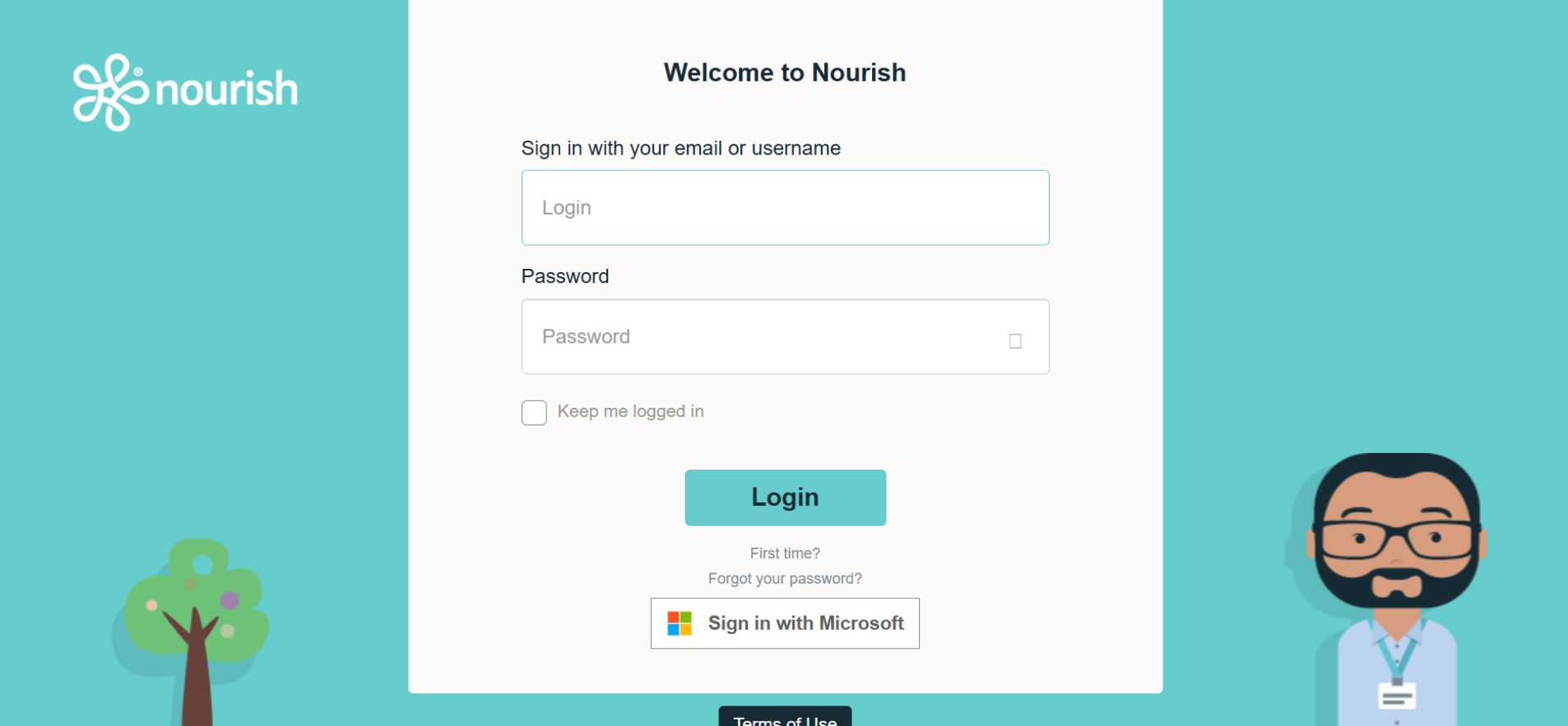
1. Open the official login page
Use:https://org.nourishcare.co.uk/login
2. Enter your email or username
This is usually provided by your manager.
3. Type your password carefully
Passwords are case-sensitive — a small typo triggers a lockout if repeated.
4. Complete two-factor authentication (if enabled)
Many providers now require MFA for compliance.
5. Select your location (if asked)
Some large groups have multiple sites.
6. You’re logged in
You’ll see your dashboard: tasks, residents/clients, alerts, and care plans.
How to Log In to the Nourish Care App (2026 Version)
The app login process is similar but has a slightly different flow.
Steps:
- Open the Nourish Empower / Carer App
- Enter your organisation code (if required)
- Enter your staff login details
- Verify with any authentication method
- Sync your device if prompted
The app then loads your shift’s tasks and residents.
Nourish Login Requirements in 2026: New Rules Managers Must Know
Two critical updates now affect login permissions — and most competitor guides ignore them.
1. GP Connect Now Requires an Extra Layer of Login Permissions
NHS Digital’s 2026 update means staff cannot access GP Connect inside Nourish unless:
- Their role includes GP Connect Authorisation
- The organisation has an active Data Sharing Agreement
- Multi-factor authentication is switched on
- The staff member is assigned an appropriate role type (manager, nurse, clinical lead)
If you can log in but see “Access Restricted: GP Connect”, this is why.
It’s not a password problem — it’s a permissions problem.
2. The CarePlanner Rebrand: Old Logins Now Route to Nourish Empower
Many people still search for CarePlanner Login — but that system is being folded into the Nourish ecosystem.
If you previously used CarePlanner:
- Go to the Nourish Empower login
- Use your old email/username
- Reset the password if the system doesn’t recognise you
- Ensure your role is mapped to Empower inside your organisation’s settings
This migration captures significant long-tail search traffic and helps staff who are still trying to log in using outdated portals.
Common Nourish Login Problems & How to Fix Them
Here are the login issues care staff face daily — with quick solutions.
1. “Incorrect username or password.”
Try:
- Confirm spelling
- Check capital letters
- Use “Forgot Password”
- Ask your manager to reset your account
2. “Your device cannot sync.”
Usually caused by:
- Outdated app version
- Poor Wi-Fi or mobile data
- Device not assigned to a site
3. “You do not have permission to access this feature”
Common for:
- GP Connect
- Medication modules
- Manager-only dashboards
Manager must update your role.
4. “Portal not loading.”
Try:
- Different browser
- Clear cache
- Use incognito
- Check the workplace firewall
5. MFA code not arriving
Check:
- Signal
- Email spam folder
- Time-sensitive SMS delays
Also Read: ATT Shift App 2026: How to Access, View Shifts & Avoid Login Errors
What You Can Do Inside the Nourish Care Portal
Once logged in, staff can perform most daily tasks without needing paper records.
Core Functions Include:
- Record care notes in real time
- Update and review care plans
- Track tasks and observations
- View alerts and escalations
- Use body maps and charts
- Monitor nutrition, hydration, and mobility
- Access GP clinical summaries (if approved)
- Communicate with your care team
This improves safety, continuity, and compliance with regulators.
Nourish vs. Other Care Management Apps (2026)
| Feature | Nourish Care | CareLineLive | PCS | Care Control |
|---|---|---|---|---|
| Real-time notes | Yes | Yes | Yes | Yes |
| GP Connect | Yes | No | No | No |
| Mobile app | Yes | Yes | Yes | Partial |
| Care Planner migration | Yes (Empower) | No | No | No |
| Workforce scheduling | Yes (Empower) | Yes | Partial | Partial |
| Best for | Care homes + LD + home care | Home care | Large orgs | Care homes |
The 5-Step System to Avoid Nourish Login Issues Forever
Use this as a checklist for staff training.
1. Confirm the correct portal for your organisation
(Web, Empower, or app)
2. Standardise password rules
Avoid the weekly lockout cycle.
3. Make MFA mandatory
Reduces compliance risks.
4. Tag all staff with the correct roles
Especially for GP Connect access.
5. Ensure devices and browsers are updated
Most login failures = outdated tech.
FAQs
Q1. How do I log in to Nourish Care?
To log in to Nourish Care, open the official login page, enter your registered username and password, and complete multi-factor authentication (MFA) if your organisation has enabled it. If you work in a care home or domiciliary service, your manager must create your profile before you can access the system.
Q2. What is the correct Nourish Care login page?
The primary login URL for most UK care providers is: https://org.nourishcare.co.uk/login
This is the secure web portal used by care staff, managers, and administrators. Always avoid third-party links to prevent phishing issues.
Q3. Why can’t I access GP Connect in Nourish?
If GP Connect is missing or shows “Access Restricted,” your account does not have the required GP Connect authorisation. A manager must assign this permission in line with the 2026 NHS Digital rules. Even if your login works, you cannot view GP records without this additional role.
Q4. Is the Nourish app different from the Nourish web portal?
Yes. The Nourish app is built for on-shift tasks such as real-time notes, observations, and care interactions. The web portal is used for management tasks, reporting, auditing, planning, and compliance. Staff typically use the app, while managers use the portal.
Q5. What happened to the old CarePlanner login?
CarePlanner has been migrated into the Nourish ecosystem. All former CarePlanner users now log in using the Nourish Empower portal. Your old CarePlanner credentials should still work, but you may need to reset your password if this is your first time accessing Empower.
Q6. How do I reset my Nourish Care password?
Select “Forgot Password” on the login page, enter your email, and follow the reset link sent to you. If you receive a “No account found” error, your manager must confirm your user profile or update your email address in the system.
Q7. Does Nourish Care work on all devices?
Yes, Nourish works across desktops, tablets, and mobile devices. However, login problems can occur on outdated browsers, unsupported Android/iOS versions, or networks with security blocks. Updating your device or switching networks usually resolves this.
Final Thoughts
Nourish Care is now central to how UK care teams record, review, and coordinate support — but logging in is still a common snag point for staff. Using the correct portal, understanding the new 2026 rules (especially GP Connect authorisation), and knowing that CarePlanner logins now route to Nourish Empower helps reduce downtime and improve workflow.
If you follow the steps above and use the right login page, accessing your Nourish Care login becomes fast, consistent, and problem-free.
Related: SWALife Login Guide 2026: Official Links, Password Reset, App Access & Retiree Login