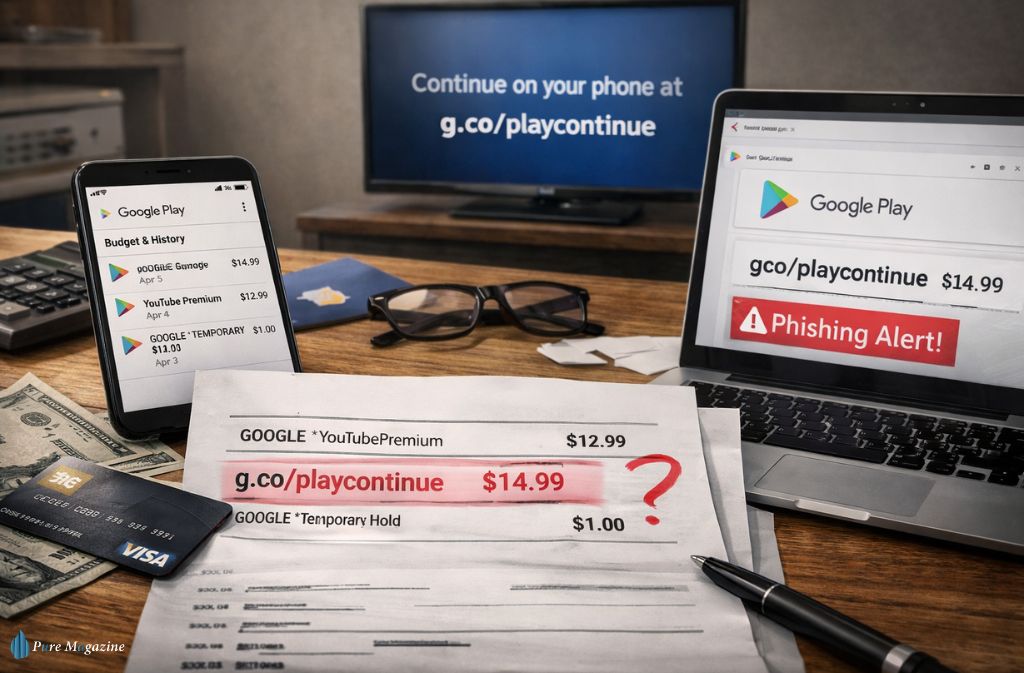
A charge labeled g.co/playcontinue can spike your heart rate in seconds. Is it fraud? A hidden subscription? Something your kid bought?
Take a breath. In most cases, it’s simply an official billing redirect used by Google for purchases made through Google Play.
This guide breaks it down clearly — no jargon, no panic. You’ll learn what g.co/playcontinue actually is, why it appears on credit cards and phone bills, how to verify and cancel subscriptions, 2026 billing changes most blogs miss, and how to spot phishing attempts.
Let’s solve this properly.
What is g.co/playcontinue?
g.co/playcontinue is an official Google short URL that redirects users to their Google Play purchase or subscription page. It appears on bank statements when a Play Store subscription renews or an in-app purchase is processed. As confirmed on Google Play’s official support page, if you find a charge you didn’t make, unauthorized charges can be reported within 120 days of the transaction.
Why Google Uses g.co Links
Google uses shortened links for email receipts, subscription confirmations, cross-device billing (TV → phone), and secure redirects inside apps.
In 2026, this is especially common with Google TV. For example, if you rent a movie on your TV, it may display: “Continue on your phone at g.co/playcontinue.” That’s intentional. It keeps your credit card details off a shared screen.
Why Is Google Play Charging My Credit Card?
Important: There is no monthly fee for Google Play itself.
Charges usually come from app subscriptions, game battle passes, streaming services, cloud storage, or YouTube memberships.
For example: YouTube Premium, Amazon Prime Video (if subscribed via Play), Paramount+.
If you signed up inside the app, billing runs through Google Play.
The 48-Hour Rule (Before You Cancel Your Card)
Here’s something most people don’t realize: Google sometimes batches small purchases. That $14.99 charge might be 3 × $4.99 in-game items, a subscription renewal + tax, or a trial conversion.
Billing can post 24–48 hours after purchase.
Before calling your bank:
- Open Google Play
- Tap Profile → Payments & Subscriptions
- Open Budget & History
- Filter by “Last 7 days.”
Match the amount and timestamp first. Canceling your card immediately can disrupt legitimate subscriptions and delay refunds.
Verify first. Dispute second.
The 48-Hour & 60-Day Refund Windows (What Most Guides Miss)
If a charge is truly accidental — for example, a child’s in-app purchase — Google offers two distinct refund paths.
As confirmed on Google Play’s official refund policy page:
- Within 48 hours: You may be able to request a refund directly through Google Play with minimal friction — in many cases, this is effectively a no-questions-asked process for apps and in-app purchases.
- After 48 hours: Use the “Report a problem” tool — this window extends up to 60 days for eligible purchases and lets you submit a reason for the refund request.
- Unauthorized charges (not made by anyone you know) can be reported within 120 days of the transaction.
Refund decisions typically arrive within 1–4 days, and approved refunds are returned to your original payment method within 10 business days.
This is a major relief for panicked parents and accidental purchasers — but the window closes fast.
How to Access Your Google Play Account
On Android:
- Open Play Store
- Tap the profile icon
- Select Payments & Subscriptions
- Tap Subscriptions
On Web or iPhone:
- Go to play.google.com
- Sign in
- Click the profile icon
- Select Payments & Subscriptions
This is where g.co/playcontinue redirects you.
The “Active vs. Expired” Filter Blindspot
Many users check their Subscriptions tab and see nothing — then assume there’s no record of the charge.
The reason: the default filter shows Active subscriptions only.
One-time purchases, expired subscriptions, and in-app purchases do not appear in the Subscriptions list at all.
To find these:
- Go to Payments & Subscriptions
- Tap Budget & History (not Subscriptions)
- Select “Last 30 days” or “Last 3 months.”
This is where every purchase — active, expired, or one-time — is logged with timestamps and amounts. If g.co/playcontinue appears on your statement but nothing shows under Subscriptions, Budget & History is where the answer will be.
The Family Link Blindspot (2026 Update)
One of the biggest causes of confusion today involves Google Family Link.
What happens: child requests purchase → parent taps “Approve” → it includes a free trial → trial auto-renews → charge appears as g.co/playcontinue.
From a parent’s view, it feels random.
If You Manage a Family Group:
- Switch to the child’s profile inside the Play Store
- Check subscriptions for free trials
- Disable auto-renew where needed
Many mobile games default to subscription renewal unless manually canceled.
Google One “Ghost” Billing (The £1.59 / $1.99 Culprit)
One of the most common g.co/playcontinue charges in 2026 that catches people completely off guard involves Google One storage.
Here’s what happens: Gmail, Google Drive, and Google Photos all share a free 15 GB of storage. When that fills up — which happens faster than most people expect with years of photos and email attachments — Google prompts you to “Continue” with a storage upgrade.
That prompt looks like a one-time action. It isn’t.
Tapping “Continue” on a storage prompt without reading the small print activates a recurring monthly Google One subscription — typically £1.59/month (100 GB) in the UK or $1.99/month in the US — billed indefinitely until canceled.
How to check:
- Go to Payments & Subscriptions
- Look for “Google One” under active subscriptions
- If present and unwanted, cancel immediately — you keep storage access until the billing period ends
This is the single most common source of small, unexpected g.co/playcontinue charges for users who have never intentionally subscribed to anything.
Carrier Billing & the “Correlation ID” (2026 Nuance)
Not all charges hit your credit card. Some appear on your mobile carrier bill.
You might see a transaction reference starting with “g” or a charge under “Digital Services.” Google assigns a Correlation ID that matches Play Store activity.
To Verify: Compare your phone bill amount, match it with Google Play purchase history, and check timestamps.
Carrier billing has expanded significantly in certain regions since 2025.
Alternative Billing Systems (Post-Antitrust Changes)
Following marketplace reforms, some apps now use alternative billing systems. You might see GOOGLE *SellerName instead of g.co/playcontinue.
This means payment is processed via approved third-party billing, cancellation may occur on the developer’s website, and refund policies may differ.
If cancellation opens a non-Google page, it’s likely alternative billing — not fraud.
Also Read: Is the App Store Still the Best Way to Discover What’s Next in App Culture?
How to Cancel a Subscription
Use this simple 3-Step system:
1. Check — Open Subscriptions inside Google Play.
2. Confirm — Review renewal date and billing amount.
3. Cancel — Tap subscription → Cancel → Confirm.
Cancellations usually stop future billing but do not refund the current period automatically. If you believe you are owed a refund, use Google’s self-serve refund request tool immediately after canceling.
Phishing in 2026: The “Lookalike Character” Scam
Scammers now copy Google receipts nearly perfectly. They use Cyrillic characters that look identical, slight domain changes, and urgent threat language.
Example:
- Real: g.co/playcontinue
- Fake: g.со/playcontinue (different “o” character)
Safe Rule: Never log in after clicking a billing email link.
Instead, type play.google.com manually and check your purchase history directly.
Official emails from Google will always match your account activity.
Charge Identifier Table (Quick Reference)
| Statement Text | Likely Meaning | What To Do |
|---|---|---|
| GOOGLE *Temporary Hold | $1 test charge | Wait 48 hours |
| GOOGLE *YouTubePremium | Subscription | Manage in the YouTube app |
| g.co/playcontinue | Play Store redirect | Check Budget & History |
| GOOGLE *[Developer Name] | App/game purchase | Contact developer |
| Correlation ID “g…” | Carrier billing | Check the phone bill |
| GOOGLE *SellerName | Alternative billing | Manage via the developer |
| GOOGLE *GoogleOne | Storage subscription | Check Google One plans |
Common Mistakes People Make
- Disputing a charge without checking the Play Store
- Ignoring free trial conversion dates
- Not checking Budget & History (only checking Subscriptions)
- Tapping “Continue” on storage prompts without reading the subscription terms
- Sharing Google account passwords
- Not enabling purchase authentication
- Clicking phishing email links
Avoid these, and most billing confusion disappears.
2026 Best Practices to Prevent Billing Surprises
- Enable biometric purchase confirmation
- Turn on 2-step verification
- Review subscriptions quarterly — including Budget & History, not just the Active tab
- Remove unused payment methods
- Enable purchase notification emails
- Check your Google One storage status — if Gmail is near full, you may have already accepted a recurring upgrade
A 2-minute review every three months can prevent a year of small leaks.
FAQs
Q. How does g.co/playcontinue work?
It redirects you to your Google Play subscription or payment page for verification and management.
Q. Is there a monthly fee for Google Play?
No. Google Play itself is free. Charges come from apps, subscriptions, or services purchased through it — including Google One storage plans that many users activate accidentally when their free 15 GB fills up.
Q. Why is Google Play charging my card?
Most likely due to a subscription renewal, in-app purchase, or a trial converting to paid status. Check Budget & History inside Payments & Subscriptions — not just the Active Subscriptions tab — for a full transaction log.
Q. Can g.co/playcontinue be a scam?
The domain is official, but scammers may impersonate it in phishing emails. Always verify inside your account by navigating to play.google.com manually.
Q. How do I stop Google Play from charging me?
Cancel the active subscription in Play Store → Payments & Subscriptions → Subscriptions. For accidental charges, use Google’s official refund request tool — within 48 hours for the easiest path, or within 60 days via “Report a Problem.”
Q. What happens if I dispute a Google Play charge?
Your bank may reverse it, but Google could restrict access to the related service. Always verify first using Google Play’s refund policy to understand your options before escalating to your bank.
Q. How Much Are 100 Google Play Points Worth?
In most regions: 100 points ≈ $1 in value, redeemable for Play credit or in-app items. The exact value varies by country and promotion.
Q. What Is the Downside of Google Authenticator?
Google Authenticator improves security, but device loss can cause lockout, transfer requires manual setup, and backup must be enabled intentionally. Still, enabling 2-step verification significantly reduces billing fraud risk.
Conclusion
Seeing g.co/playcontinue on your statement doesn’t automatically mean fraud.
In most cases, it’s a subscription renewal, an in-app purchase, a free trial conversion, or carrier or alternative billing.
The smart move isn’t panic. It’s verification.
Log in to your Google Play account, check Budget & History (not just Subscriptions), review your Google One storage plan if you see a small recurring charge, and secure your login. Once you understand how the system works, those “mystery” charges stop being mysterious.