High-end gaming mice are no longer limited by hardware alone. Firmware, receivers, and lightweight software layers now play just as big a role in real-world performance. That reality hits fast after unboxing the Arbiter Studio × Vancer Akitsu, which is why searches for akitsu mouse software continue to grow in 2026.
Most confusion comes from one simple expectation mismatch: users look for a traditional installer, while Akitsu relies on a browser-based configuration app plus a separate firmware updater. Miss either piece, and problems like mouse detection failures, sensor skipping, or unstable 8K polling can appear.
This guide reflects the latest verified behavior of Akitsu Batch 2 and Akitsu Medium (2026). It explains which tool to use, when to use it, and how to avoid the mistakes that still circulate in forums. You’ll also learn how the LCD receiver changes daily usage, why sensor specs differ by size, and how to keep your mouse stable without running software in the background.
If you want a clean, frustration-free Akitsu setup that actually performs as advertised, this guide walks you through it step by step.
Understanding What Users Are Looking For
When people search for Akitsu mouse software, most aren’t just browsing—they have a specific goal in mind. Typically, they want:
- Clear, official guidance on the software and firmware
- Solutions to common problems like detection failures, stuttering, or 8K polling issues
- Step-by-step setup instructions for DPI and polling configuration
- Confirmation that their sensor or model isn’t outdated
In other words, these searches sit at the early decision stage: users have the mouse in hand and need actionable answers fast. While some queries are navigational—finding the official web app or firmware—most are informational, focused on troubleshooting and setup.
Akitsu Software Ecosystem (Important Distinction)
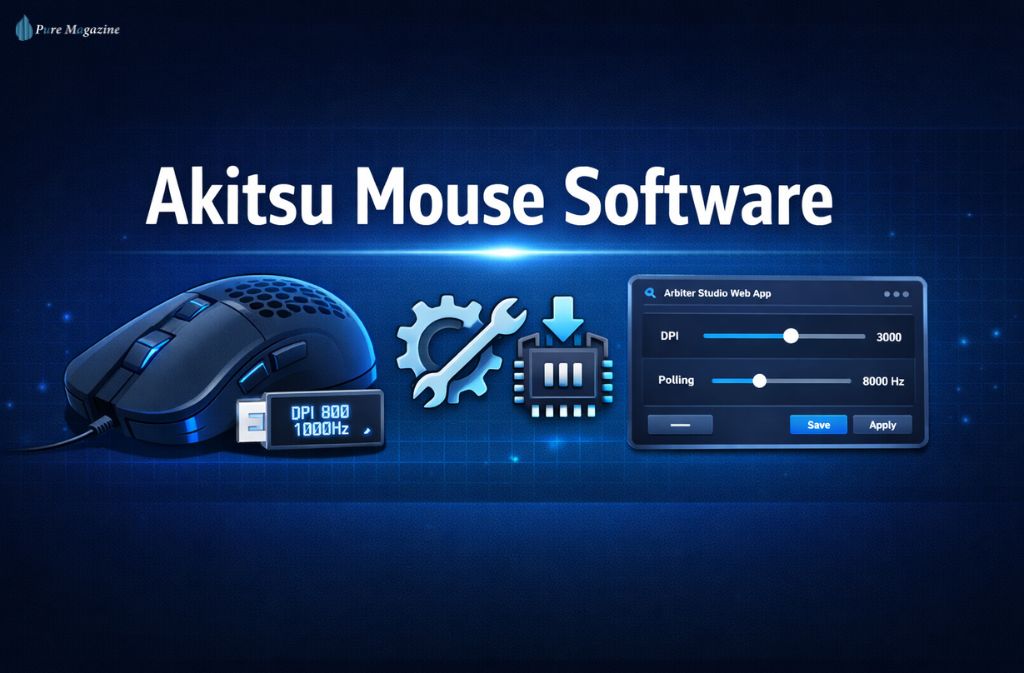
Akitsu does not rely on a single tool. In 2026, there are three distinct components, each with a different role.
1. Arbiter Studio Web App (Primary Software)
- Browser-based (no installer)
- Used for DPI, polling rate, and button remapping
- Required to save settings to onboard memory
- Preferred tool for Akitsu Medium (2026) due to improved 8K stability patches
This is the software most users mean when they search for akitsu mouse software.
2. Firmware Updater (Mandatory Download)
Standalone .exe (Windows) or .dmg (macOS)
Required to fix early-batch issues such as:
- Sensor skipping
- Micro-freezing
- Unstable 8K polling
This tool must be installed before using the Web App on new or older units.
3. LCD Receiver (Hardware-Level Control)
Built-in LCD screen on the wireless dongle (2026 models)
Allows adjustment of:
- DPI
- Polling rate
- Battery status
- Reduces reliance on software once configured
Browser Compatibility
The Arbiter Studio Web App utilizes WebUSB/WebHID, which restricts browser support.
Supported browsers:
- Google Chrome
- Microsoft Edge
- Brave
Not supported:
- Firefox (no WebUSB support)
- Safari
Attempting setup in unsupported browsers is a common cause of detection failure.
Sensor Specs Explained (2026 Update)
Akitsu models do not share the same sensor, and this is intentional.
| Model | Sensor | Max DPI | IPS |
|---|---|---|---|
| Akitsu Medium (2026) | PixArt 3950 | 30,000 | 750 |
| Akitsu Small | PixArt 3395.1 | 26,000 | 650 |
Important clarification: The 3395.1 is not outdated. It remains a flagship-grade competitive sensor with excellent motion consistency. The 3950 simply offers higher headroom, mainly benefiting high-DPI users and testing scenarios.
Step-by-Step: Correct Akitsu Setup Order (2026)
1: Download & Install Firmware Updater
- Use the official Akitsu firmware tool only
- Connect the mouse with the ORIGINAL PARACORD CABLE (IMPORTANT)
- Avoid USB hubs and third-party cables (handshake failures are common)
- Flash to v14.0 or higher
Do this before opening the Web App.
2: Open Arbiter Studio Web App
- Use a Chromium-based browser
- Click Connect Device
- Approve WebUSB permission
3: Configure Core Settings
Recommended starting point:
- DPI: 400 / 800 / 1600
- Polling: 1000–2000 Hz (increase only after stability testing)
- Disable unused DPI stages
4: Save to Onboard Memory
This step is mandatory. Without it, settings are reset after power cycling.
5: Use LCD Receiver for Daily Adjustments
Once configured, most users can change DPI or polling directly on the dongle—no software required.
Also Read: Jailbreak: The Ultimate CS 1.6 Mod That Keeps the Prison Gates Swinging
Firmware vs. Software: When to Use What
| Issue | Tool Needed | Action |
| Sensor skipping / stutter | Firmware Updater | Flash to v14.0+ |
| Mouse not detecting | Firmware + Web App | Update firmware, reconnect |
| DPI/button remapping | Web App | Change & save onboard |
| Polling rate change | Web App or LCD Receiver | Adjust and confirm |
| Battery check | LCD Receiver | View on-screen |
Core Features That Matter
2026 Dragonfly Base Design (Akitsu Medium)
The Akitsu Medium (2026) introduces an updated dragonfly-style base structure, designed to reduce surface contact while maintaining rigidity. This design significantly lowers friction on glass and hybrid mousepads, making micro-adjustments smoother without increasing stick-slip.
This change is subtle on cloth pads but very noticeable on glass—one of the reasons the 2026 Medium variant is favored by low-sensitivity FPS players.
Polling Rate (1K–8K Hz)
- 1000 Hz: safest default
- 2000–4000 Hz: competitive sweet spot
- 8000 Hz: requires a strong CPU + updated firmware
Higher polling without firmware updates often causes instability.
Onboard Memory
- Profiles persist across systems
- Tournament-safe
- Eliminates background software
Button Mapping
- Best used for utility binds
- Avoid aggressive macros in competitive play
Quick-Fix Troubleshooting (Read This First)
| Symptom | Primary Cause | 2026 Solution |
| Mouse not detected | Browser incompatibility | Switch to Chrome, Edge, or Brave (Firefox not supported) |
| Sensor skipping at 8K | Outdated firmware | Flash to v14.2+ using the standalone firmware updater |
| Settings reset on restart | Onboard memory not written | Click Write to Onboard in the Web App |
| LCD screen frozen | Dongle desync | Unplug dongle for 5 seconds, then reconnect |
Common Mistakes to Avoid
- Using Firefox for setup
- Skipping firmware updates
- Flashing with third-party cables
- Running other mouse software simultaneously
- Assuming higher polling always improves aim
Real-World Competitive Example
A CS2 player testing Akitsu Medium at 8K polling reported inconsistent frametimes until firmware v14.2. After updating and lowering polling to 2000 Hz, tracking stability improved with no measurable latency loss.
Takeaway: stability beats spec chasing.
Also Check: Software NOOBS: Complete Raspberry Pi Guide (2026)
Best Practices Checklist
- ✅ Update firmware first
- ✅ Use original cable for flashing
- ✅ Save settings onboard
- ✅ Use LCD receiver for daily changes
- ✅ Increase polling gradually
FAQs
Q. Is there a downloadable Akitsu mouse software?
No. There is no traditional Akitsu mouse software installer. Configuration is done through the Arbiter Studio Web App in a supported browser, along with a separate downloadable firmware updater used for stability fixes.
Q. Do I need the Akitsu firmware tool?
Yes. The Akitsu firmware updater is mandatory if you experience sensor skipping, freezing, mouse disconnects, or unstable 8K polling. Updating to firmware v14.2 or higher resolves most early-batch issues.
Q. Does Firefox work with Akitsu mouse software?
No. Firefox is not supported because it does not support WebUSB or WebHID. Use Google Chrome, Microsoft Edge, or Brave for reliable detection.
Q. Can I change DPI without using the software?
Yes. On 2026 Akitsu models, the LCD receiver (dongle) allows you to change DPI and polling rate directly using physical controls, without opening the Web App.
Q. Is the PixArt 3395 sensor outdated?
No. The PixArt 3395 / 3395.1 sensor is not outdated. It remains a top-tier competitive sensor with excellent tracking consistency and is still widely used in professional FPS mice.
Conclusion
Akitsu mouse software is deliberately minimal, but it only works well when you understand the full ecosystem behind it. The combination of a browser-based Web App, mandatory firmware updater, and LCD receiver gives you flexibility without background bloat—if used in the correct order.
Once updated and configured, most users rarely need to reopen the software at all. That’s the real strength of the Akitsu approach in 2026: configure once, then let the hardware do the rest.
Related: How to Clean a Mouse Pad (The Right Way) – Safe for Cloth, RGB & Gaming Pads