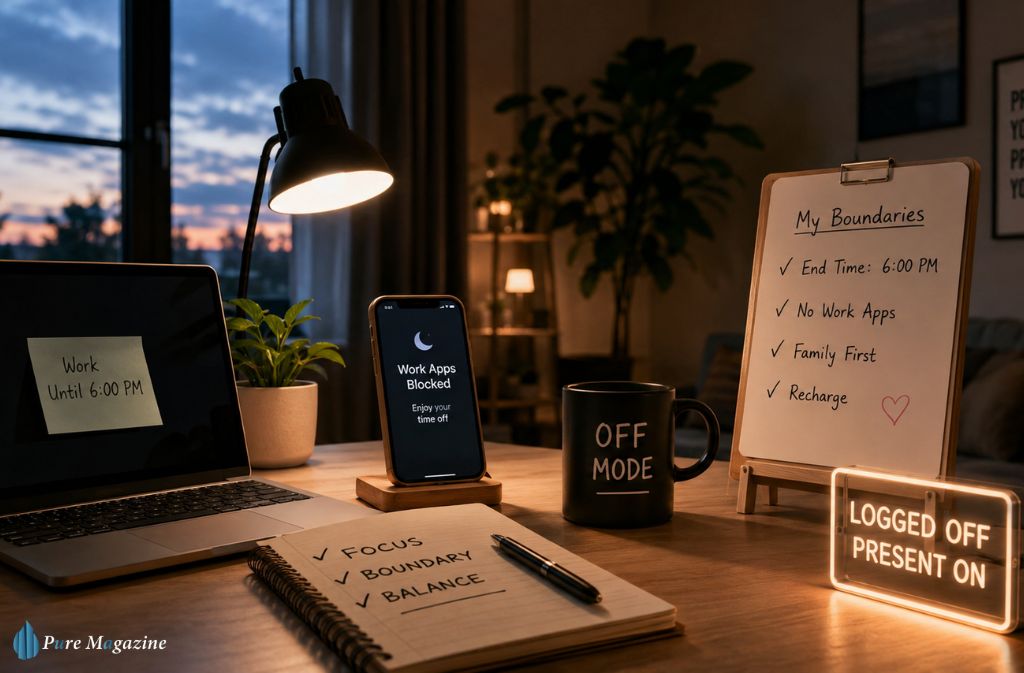
During my first year working remotely, my evening boundary was a mental note: stop by six. It collapsed almost every Tuesday, right when West Coast messages started rolling in during my evening. Intention alone is a weak defense. That failure is the real story behind most “screen time” problems remote workers face — it’s rarely about willpower. It’s about the absence of structure that office life used to hand you for free: a building you physically left, a commute that forced a mental reset, a door that closed behind you.
This guide builds a working system for setting screen time boundaries as a remote worker in 2026. It’s grounded in what actually survives a stressful week — not a listicle of “turn off your notifications” tips, but a layered structure covering device configuration, physical setup, and the team conversations that make or break whether any of it sticks. You’ll also get a real technical blueprint for locking work apps across a Mac-and-iPhone setup, and a copy-paste script for the conversation with your team that most advice skips entirely.
Screen time boundaries for remote workers have also started intersecting with actual law. Right to disconnect legislation — rules that let employees refuse after-hours work contact without penalty — now exists in more than a dozen countries, from France’s original 2017 framework to Australia’s 2024 law enforced by the Fair Work Commission. Even if your country hasn’t legislated it, the fact that governments are stepping in tells you something: this isn’t a personal failing. It’s a structural problem showing up at scale.
What Counts as a Screen Time Boundary for Remote Workers
A screen time boundary is a defined limit on when, where, or how long you engage with work-related screens, backed by an enforcement mechanism that doesn’t depend purely on self-control. For remote workers, that usually means a hard stop on laptop use after a set hour, keeping work apps out of your personal phone’s daily rotation, and a physical ritual that marks the shift from “on” to “off.”
Here’s the distinction that actually matters: necessary screen time versus residual screen time. Necessary screen time is the real hours your job requires. Residual screen time is the extra hour rereading a Slack thread you’ve already read, or half-working while a show plays in the background. Generic screen-time-limit apps often miss this split entirely — they cap total minutes, which punishes necessary work time just as much as the compulsive scrolling, and that’s exactly why so many people abandon those apps within a month.
Why Remote Work Erodes Boundaries Faster Than Office Work
Office boundaries were physical. You left the building, and that departure did the psychological work of switching you off. At home, the device that ends your workday is the same device that starts your evening — often the same room, the same chair, the same three inches of screen. Occupational psychology has a name for this: boundary theory notes that when the physical “fringe” between roles disappears — the commute, the building, the closing door — cognitive role-blurring goes up sharply. Your brain simply has fewer cues telling it which mode it’s supposed to be in.
Asynchronous work culture makes it worse. Distributed teams spanning time zones tend to normalize messages landing at odd hours, and that normalization creates a low-grade sense that you should always be reachable — even when nothing is actually urgent. Researchers call this feeling telepressure: the preoccupation with responding to messages immediately, even outside working hours, driven by unclear norms rather than real urgency. Teams that explicitly define core overlap hours versus async hours see dramatically fewer after-hours check-ins than teams that leave it unstated. The ambiguity is the trigger, not the message itself.
There’s also a mechanism worth naming directly: the intermittent variable reward loop. Slack and email operate on the same psychological structure as a slot machine — you don’t know if the next check will surface something important, boring, or nothing at all, and that unpredictability is exactly what keeps you pulling the lever. Fixed rewards (a message that arrives every hour, on the hour) don’t create compulsive checking. Variable rewards do. That’s why “just glancing” at Slack rarely stays a glance.
Setting a Realistic Screen Time Budget by Role
Forget flat targets like “six hours a day.” That number ignores how wildly different remote roles distribute screen demand. A support agent needs near-continuous engagement during shift hours, then zero contact outside them. A product manager might log fewer total hours but check in twelve separate times across the day — and each of those micro-checks reopens the mental loop of work, which costs more than the raw minutes suggest.
| Role Type | Typical Screen Pattern | Best Boundary Strategy |
|---|---|---|
| Customer support/ops | Continuous, shift-bound | Hard clock-out with app lockout at shift end |
| Software engineering | Deep-focus blocks with breaks | Protected focus windows + scheduled inbox checks |
| Sales/account management | Fragmented, reactive | Batch notification windows (e.g., 3x/day) |
| Creative / design | Long asynchronous sessions | Physical device separation for personal time |
| Management/leadership | High fragmentation, meeting-heavy | Meeting-free blocks + explicit “away” status |
Match the tactic to the failure mode, not to a universal number. A manager drowning in back-to-back meetings needs a different fix than a support agent glued to a live queue.
The Four-Layer Boundary System
A boundary that exists only as an intention rarely survives a busy week — mine didn’t, until I stopped treating it as a personal virtue and started treating it as infrastructure. Here’s the system, in the order that actually holds.
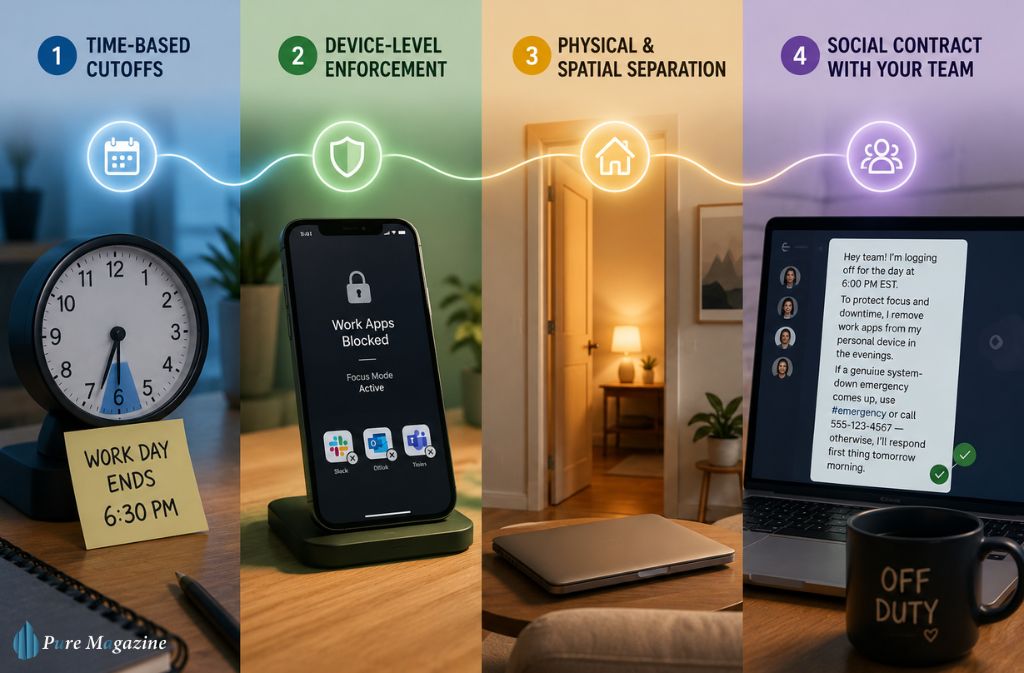
Layer 1: Time-Based Cutoffs
Pick a specific end time and treat it like a meeting you can’t skip. “I stop checking Slack at 6:30 p.m.” is enforceable. “I try not to work too late” isn’t — it’s a hope dressed up as a plan.
Layer 2: Device-Level Enforcement
Let’s be honest: a lit-up notification badge beats willpower most nights. This is where specific tools matter more than the abstract idea of “app blocking.” I now use Opal to hard-block Slack and email at the OS level after 6:30 p.m. — not muted, not hidden, genuinely inaccessible without an override I’ve made deliberately annoying. On iOS, Apple’s Screen Time with a passcode held by someone else — a partner, a friend, anyone but you — removes the option to just type in your own override at 9 p.m. when you’re tired and rationalizing. Android’s Digital Wellbeing with a Focus Filter does the same job on that ecosystem.
Blueprint: The Cross-Device Lockout Stack
Layer 2 falls apart if your personal phone becomes the side door back into work. Here’s the actual setup that closes it:
- Set a “Personal” Focus profile (iOS Focus Filters or Android Focus Mode) to auto-activate 15 minutes before your cutoff time — not exactly at the cutoff, since that buffer matters when a meeting runs long.
- Whitelist by exclusion, not inclusion: hide Slack, Microsoft Teams, and Outlook icons from your home screen entirely during that window rather than just muting their notifications.
- Apply the friction rule: move work apps out of your first three home screens and into the App Library or a folder buried two taps deep. You want your brain to have to decide to go looking for them, not stumble into them out of muscle memory.
- Sync the Mac-to-iPhone bridge: if you use Focus modes across both Apple devices, confirm they’re linked in Settings > Focus, so activating “Personal” on your phone also silences Slack desktop notifications on your laptop. A lockout that only covers one device isn’t a lockout.
Layer 3: Physical and Spatial Separation
Where the device lives matters nearly as much as when you use it. Charging your work laptop in a different room than the one you relax in breaks the automatic reach-for-it habit far better than any settings toggle — because it removes the trigger before willpower even enters the picture.
Layer 4: Social Contract with Your Team
Most screen time advice skips this layer, and it’s usually the one that decides whether the other three hold. If your teammates expect instant replies at 8 p.m., no device setting fully protects your evening — you’ll either break the boundary or spend the whole time anxious about not responding. State your hours explicitly. Don’t make people guess.
The Social Contract: What to Post in Slack
Here’s a template you can copy and adapt for your own team channel:
“Hey team! I’m logging off for the day at 6:00 PM EST. To protect focus and downtime, I remove work apps from my personal device in the evenings. If a genuine system-down emergency comes up, use [designated emergency channel/phone number] — otherwise, I’ll respond first thing tomorrow morning.”
Sending that message once, and meaning it, does more for your evenings than any app.
Common Mistakes That Undermine Screen Time Boundaries
Muting notifications only solves half the problem — the habit of opening the app anyway, out of pure muscle memory, often survives long after the badge disappears. That’s why device-level app blocks tend to outperform notification management alone: they remove the option, not just the prompt.
People also tend to set boundaries only for evenings and forget weekends entirely, even though weekend screen creep is frequently worse. There’s no shift-end ritual on a Saturday to signal the day is over, so a “quick check” of email has no natural edge the way a weekday 6 p.m. cutoff does.
And a boundary decided once isn’t a boundary kept. Without a mechanical enforcement layer — an app lock, a separate device, a team agreement — a boundary is just a preference you’ll abandon on the first hard day. The people who actually hold these limits pair the decision with something physical or automated, not just a memory.
One more trap: the re-engagement spiral. A single quick check of a work app at night often triggers a longer session, because seeing one unresolved item pulls your attention toward the others sitting next to it. Full lockouts beat “just glancing” precisely because the glance is usually what breaks the boundary in the first place.
Handling Team Pressure Without Damaging Trust
The hardest part of holding screen time boundaries as a remote worker usually isn’t the personal habit — it’s the fear that stepping away will read as disengagement, especially on teams where visibility substitutes for trust. A few things help:
- State your available hours explicitly in a shared calendar or channel, rather than assuming people will infer them from your past behavior.
- Separate “urgent” from “can wait until tomorrow” with a concrete channel or tag, so your team has a real path to reach you for genuine emergencies without normalizing after-hours pings for everything.
- Model the boundary publicly. When a manager visibly logs off at a set time, it gives the rest of the team permission to do the same. Silence on this defaults to the most anxious person’s habits, not the healthiest ones.
FAQs
Q. How many hours of screen time is normal for remote workers?
There’s no fixed number. It depends on your role and tasks. What matters more is reducing non-essential “residual screen time” like repeated app checking outside work needs.
Q. Do screen time apps actually work for remote workers?
Yes, but only when combined with stronger systems like device-level locks or team agreements. On their own, most apps fail because users can easily override or ignore them.
Q. How do I stop checking Slack after work hours?
Use hard barriers, not willpower: disable badges, hide Slack from your home screen, and set app limits using tools like Apple Screen Time or Opal with a passcode you don’t control.
Q. Is it normal to feel anxious about not replying after work?
Yes. It usually comes from unclear team expectations, not real urgency. Anxiety decreases when teams define clear availability hours and response rules.
Q. What’s the difference between screen time and a work boundary?
Screen time is behavior. A boundary is the rule behind it. Without boundaries, reducing screen time is temporary because the habit to check still exists.
Q. Should remote workers use a separate phone or profile for work?
Not always necessary, but using a separate Focus mode, profile, or workspace folder helps reduce accidental work checking and creates a mental separation between roles.
Q. How do async teams avoid always-on expectations?
They define core overlap hours for real-time work and treat everything else as asynchronous. Without this, teams often drift into constant availability pressure.
Q. Do right-to-disconnect laws apply to remote workers?
Yes. In countries like France, Spain, Portugal, and Australia, right-to-disconnect laws protect employees from after-hours work contact. Where laws don’t exist, clear team policies serve the same function.
The Underlying Principle
Screen time boundaries hold up when you treat them as infrastructure, not intention. A time cutoff without device enforcement is a wish. A device lockout without a team conversation about availability just trades one anxiety for another. The system that actually works layers all four pieces — time, device, space, and social agreement — so no single failure point collapses the whole thing.
The goal was never zero screen time. It’s screen time that maps to real work, with a clear, enforced edge where work ends and the rest of your day actually begins.
For more, visit Pure Magazine